Displaying Content on Vū One (or other Display) using Vū Studio
The Splash Screen
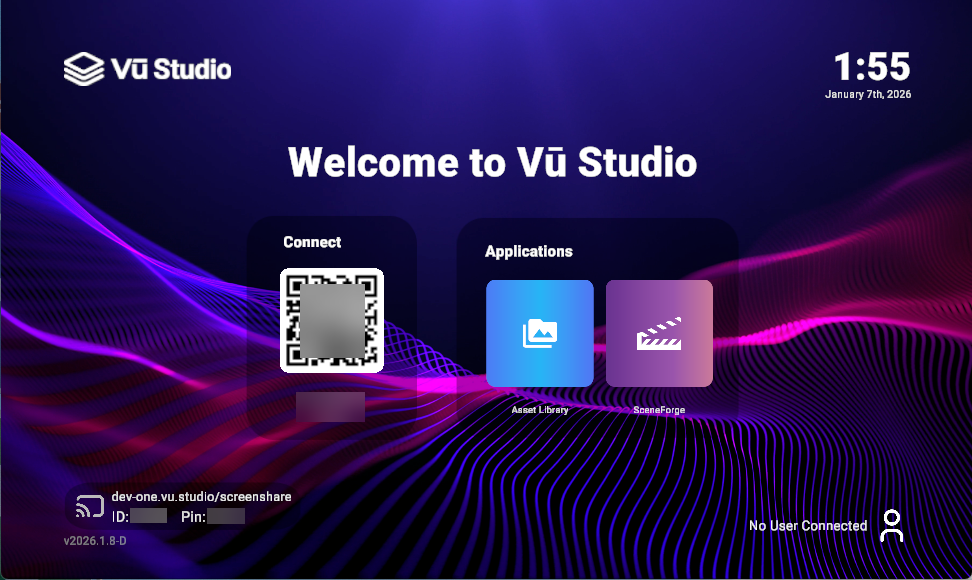
Once you have completed registration and setup, the Splash Screen will appear. This screen is the default view for Vū Studio when no media is playing. You can view the date, time, version number, and helpful notifications as you use your Vū system.
- On the splash screen is the Connection QR Code with the ID displayed below it.
- From a mobile device, you can scan the QR code to connect to the Vū Studio System
- From any device with a web browser, you can open https://one.vu.studio and enter the name or code into the connection menu to connect and display content.
- The connection menu will be a red circle icon at the top menu bar if not connected. That circle will turn green and display the connected player when connected.
Connecting
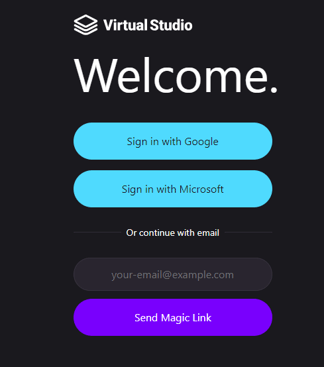
- When first connecting, you may need to log in or sign up for a Vū Studio Account if you have not done so already.
- Once connected, you can display media on the display by navigating to the Library and selecting an existing asset, or by uploading your own media assets.
Selecting Media
- Within the Library in Vū Studio, you can create personal folders to organize your media. These media assets can be selected from the included Vū library or from optional subscription libraries.
- From there you can select any media file from the library and send it to the display.
- You can also upload your own media by clicking the “Add Media”
 button in the Library. This option allows you to upload files, create web links, create NDI sources, create text layers or create Vū Experiences. All of these items will become tiles in your library once created.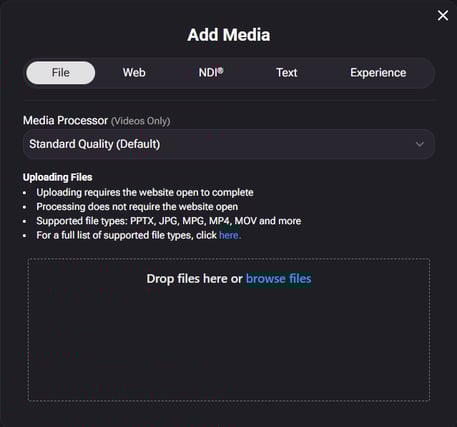
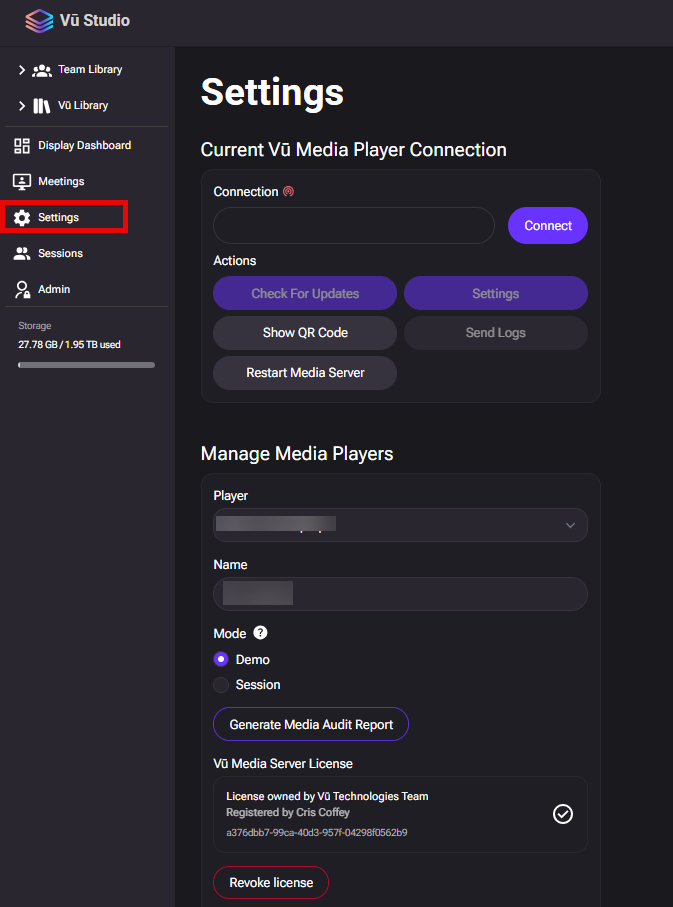
- You can access Vū Studio settings by clicking the Settings button in the left hand menu.
- On the Settings page, you can:
- Control your current connection, adjust settings of the connected display, check for updates, send logs to support, or even restart the media server remotely.
- You can also manage the license and Name of all of your registered players.
Configuring the Vū Media Server
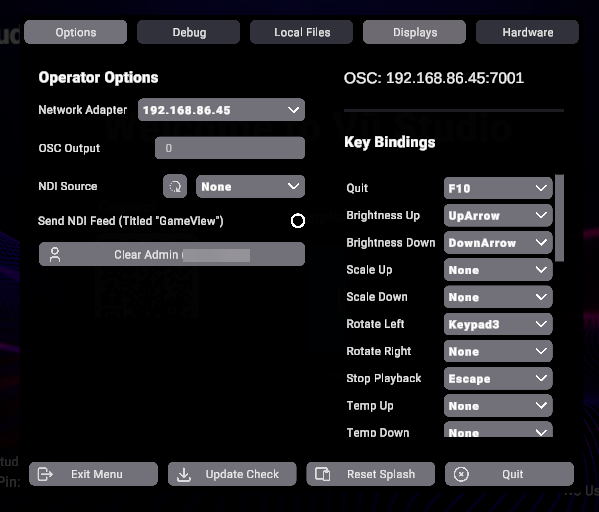
- You can also adjust system settings of the Vū Media Server by accessing the Operator Menu on the media server itself. You can do this by using a keyboard connected to the media server and by pressing
F12on the keyboard. This menu gives you control over certain system level settings and debug functions.